---
title: EVA Plus - Disconnect EVA Plus from IBM MDM - Enroll to Liger MDM
description: EVA Plus
---
[Skip to content](https://kb.ligermedical.com/disconnect-ibm-mdm-enroll-liger-mdm#main-content)
English
Show submenu for translations
[More support](https://kb.ligermedical.com/kb-tickets/new?hsLang=en)
[.png?width=500&height=131&name=horiz-onwhite-noslogan%20(1).png)](https://ligermedical.com/)
Open main navigation
Close main navigation
- English
Show submenu for translations
- [More support](https://kb.ligermedical.com/kb-tickets/new)
- [Contact us](mailto:support@mobileodt.com)
[Contact us](mailto:support@mobileodt.com)
How can we help you?
- There are no suggestions because the search field is empty.
1. [Liger Medical Help Center](https://kb.ligermedical.com/?hsLang=en)
2. [Troubleshooting](https://kb.ligermedical.com/troubleshooting?hsLang=en)
# EVA Plus - Disconnect EVA Plus from IBM MDM - Enroll to Liger MDM
## How to disconnect EVA Plus from MaaS360 and enroll to Liger MDM
### Overview
EVA devices are managed through the **Liger Mobile Device Management (MDM)** system.
**EVA Plus** devices that are still configured under the legacy **MaaS360** management app must be transitioned to **Liger MDM**.
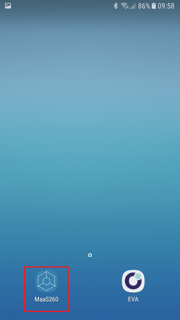
If your EVA Plus home screen appears as shown below, please proceed with the steps outlined next.
### 
#### Enroll EVA Plus device to Liger MDM steps
1. [1. Exams backup](https://kb.ligermedical.com/disconnect-ibm-mdm-enroll-liger-mdm#Exams_backup)
2. [2. Disconnect the device from MaaS360](https://kb.ligermedical.com/disconnect-ibm-mdm-enroll-liger-mdm#Disconnect_MaaS360)
3. [3. Factory Reset and Reinstalling the Device](https://kb.ligermedical.com/disconnect-ibm-mdm-enroll-liger-mdm#Factory_Reset)
4. [4. MDM Enrollment](https://kb.ligermedical.com/disconnect-ibm-mdm-enroll-liger-mdm#MDM_enrollment)
### 1. Exams backup
**Caution**: All data on the device will be lost including exams data, images, videos and user data. To **avoid data loss**, ensure that all your users exams has been synced or exported before updating.
Before proceeding, ensure all of the following requirements are met:
- The device is connected to Wi-Fi, and the Wi-Fi password is available.
For instructions on connecting the device to Wi-Fi, see [HERE](https://kb.ligermedical.com/eva-plus-set-up-the-eva-plus-device-wifi?hsLang=en).
- All users on the device have confirmed that their exams are fully backed up:
- All draft exams have been completed.
- - Exams completed by opt-in users have been synced.
- Exams completed by opt-out users have been exported.
- - All ZIP exports have been removed from the device.
For more information and related instructions, refer to the following articles:
- Exam status overview — [HERE](https://kb.ligermedical.com/eva-app-reviewing-exams-on-the-app?hsLang=en)
- How to open the users list — [HERE](https://kb.ligermedical.com/eva-app-change-user?hsLang=en)
- How to export exams — [HERE](https://kb.ligermedical.com/eva-app-exporting-the-exam-to-a-local-folder-on-the-device?hsLang=en)
- How to copy exported exams — [HERE](https://kb.ligermedical.com/eva-plus-how-to-copy-exported-exam-from-the-device-to-a-computer-by-a-usb-cable-pc?hsLang=en)
### 2. Disconnect the device from MaaS360
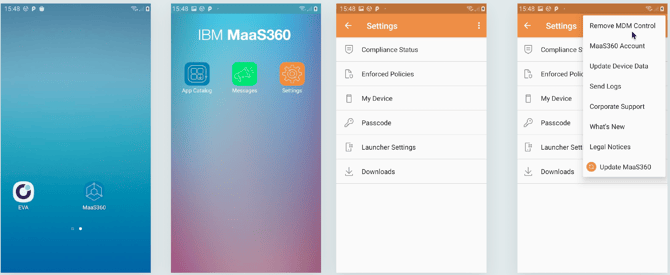
- Open **MaaS360**.
- Tap on **Settings**.
- Tap the **three-dot menu** in the top-right corner.
- Select “**Remove MDM Control**”
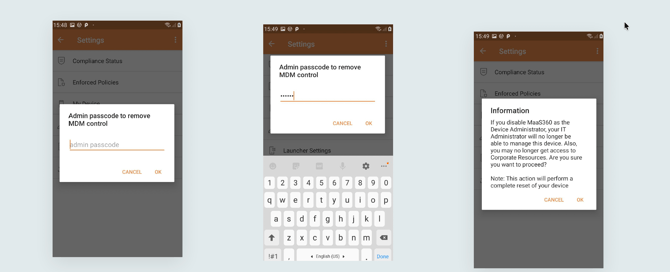
- Insert **passcode: abc123**
****
### 3. Factory Reset and Reinstalling the Device
**See a quick steps video:**
### **Factory Reset**
**Note**: On some devices, after completing '**Step 2: Disconnect the device from MaaS360**' above, the device may automatically reboot and reset, making a manual factory reset unnecessary. If your device reboots automatically, proceed directly to '**[Step 2](https://kb.ligermedical.com/disconnect-ibm-mdm-enroll-liger-mdm#Step_2_reboot)'** below.
---
#### **Step 1 - Manual factory reset**
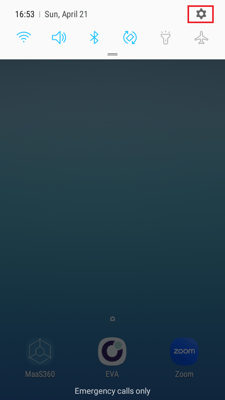
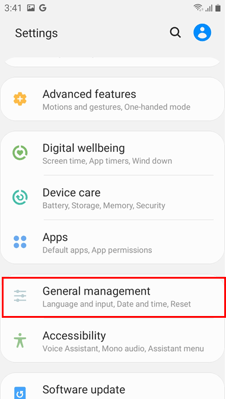
- Open phone **Settings**
- Tap on **General management**
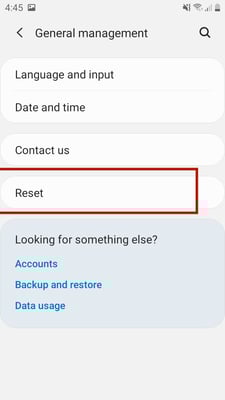
- Tap on **Reset**
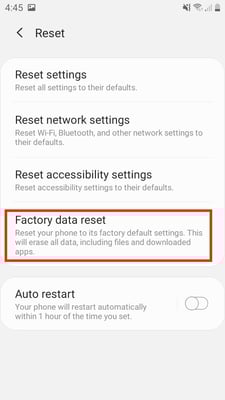
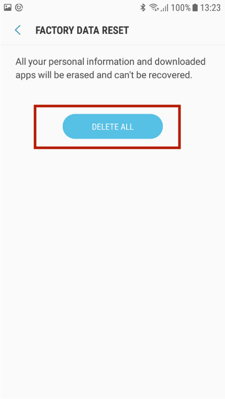
- Tap on **Factory data reset**
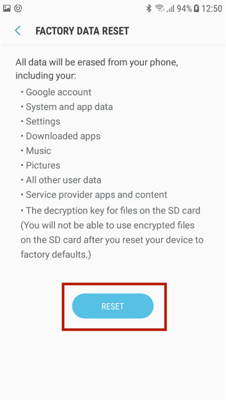
- Tap on **RESET**
- Tap on **‘DELETE ALL’**
.  
---
#### **Step 2**
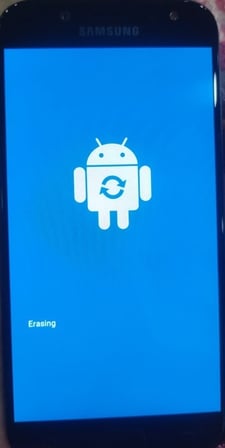
The device will reboot and erasing
---
#### **Step 3**
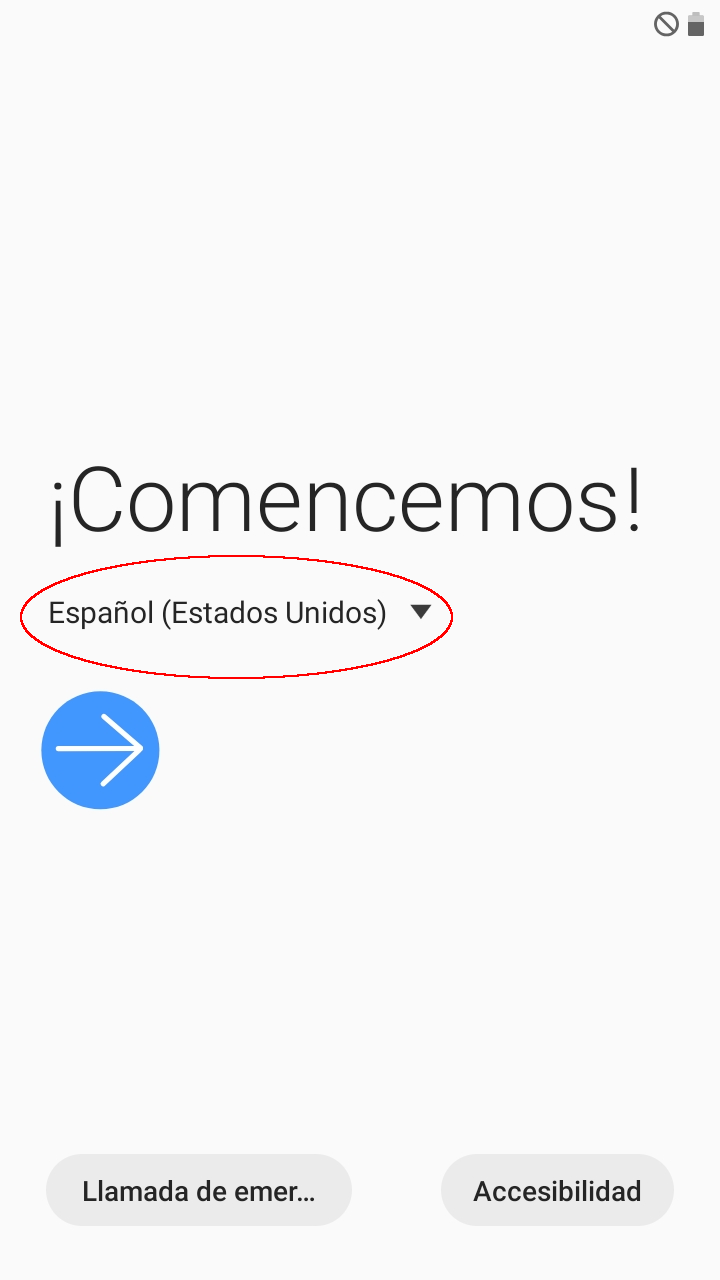
The following screen will be shown after the device has rebooted.
The language may have changed. Please select a preferred language.
**Important: Do not press the blue arrow.**
---
### **4. MDM Enrollment**
#### **Step 4**
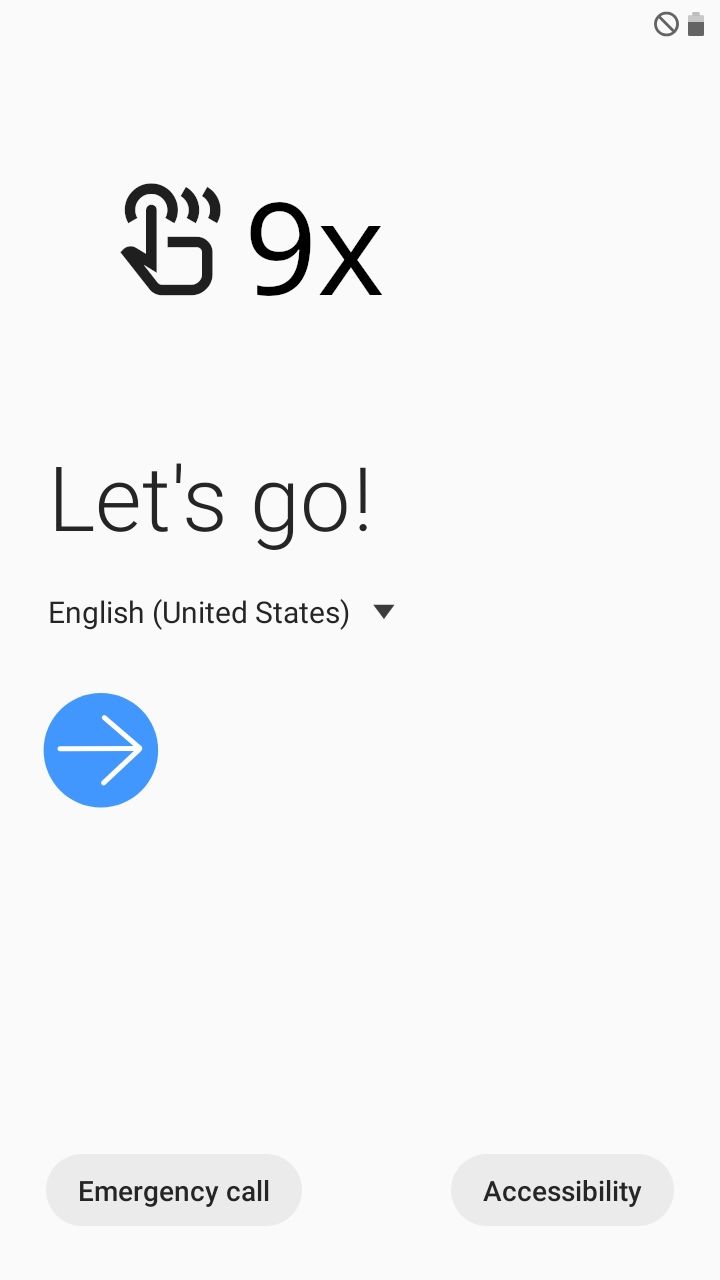
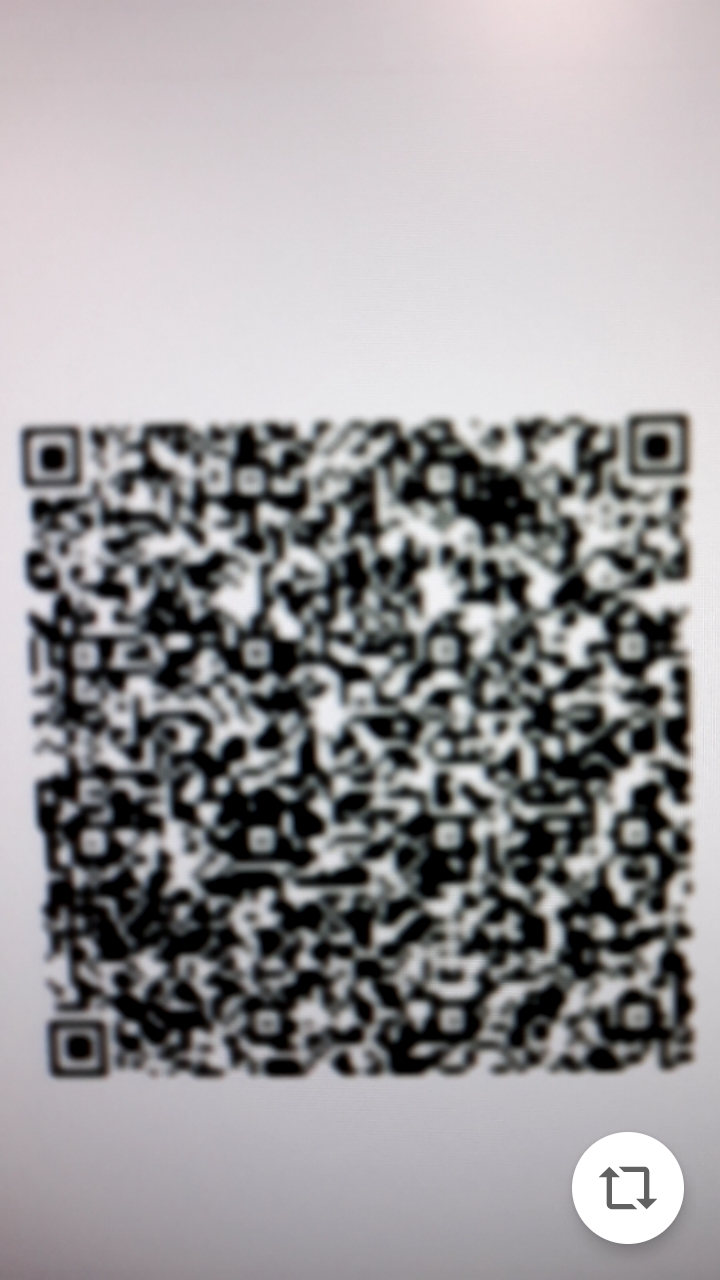
Tap on the white part of the screen 9 times. A QR code scanner will appear.
---
#### **Step 5**
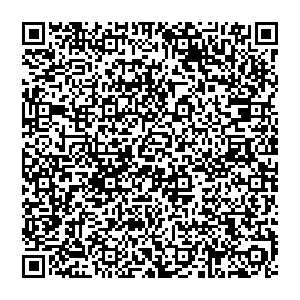
Scan the QR code shown below.
---
#### **Step 6**
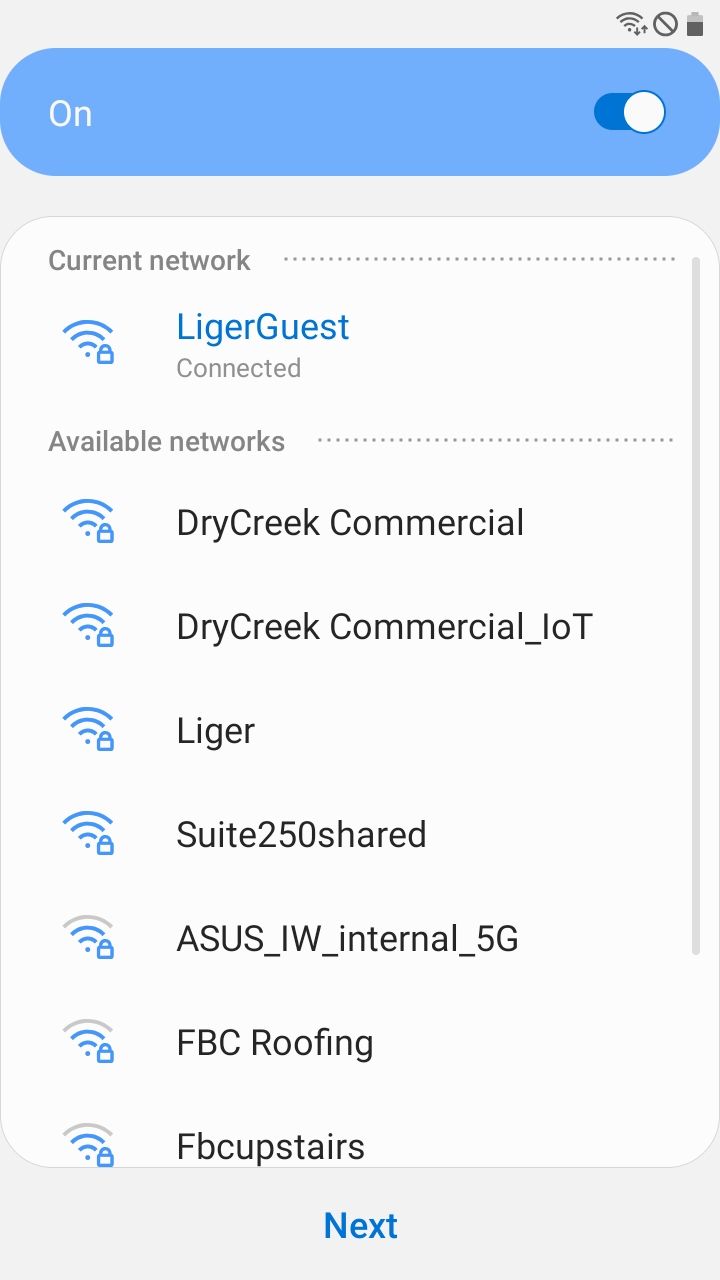
Connect to a Wi-Fi network and tap next.
---
#### **Step 7**
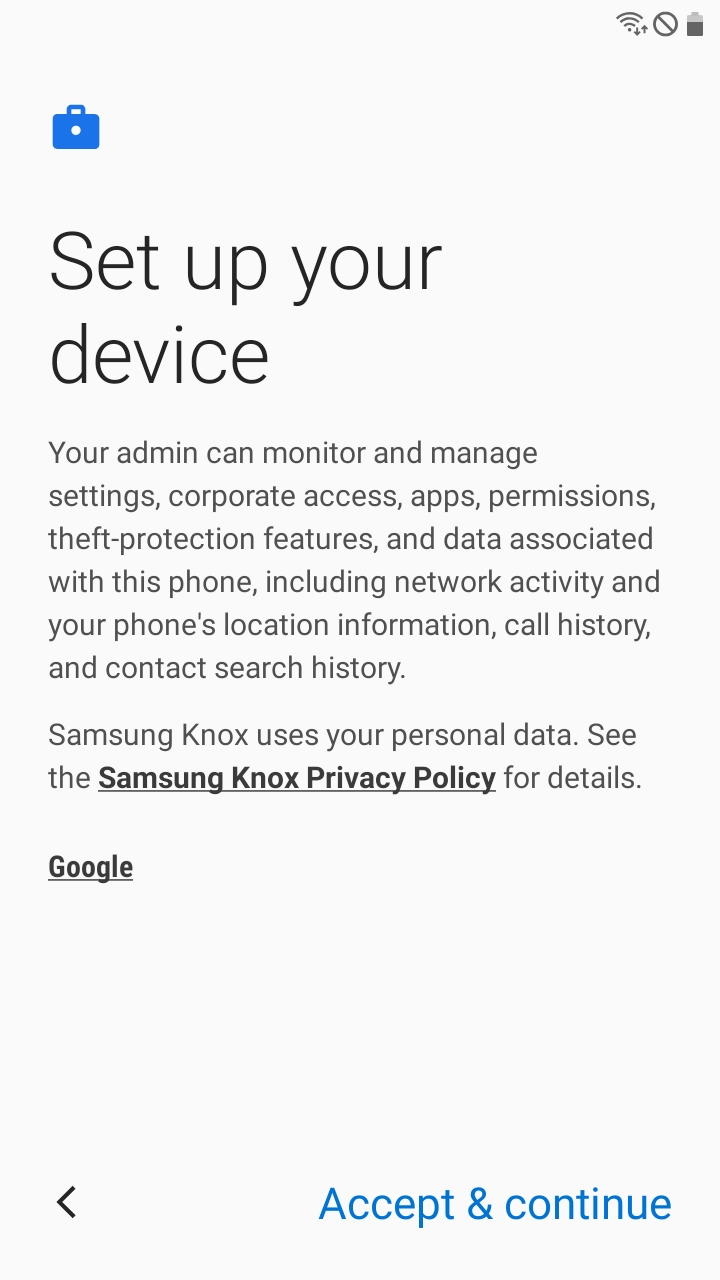
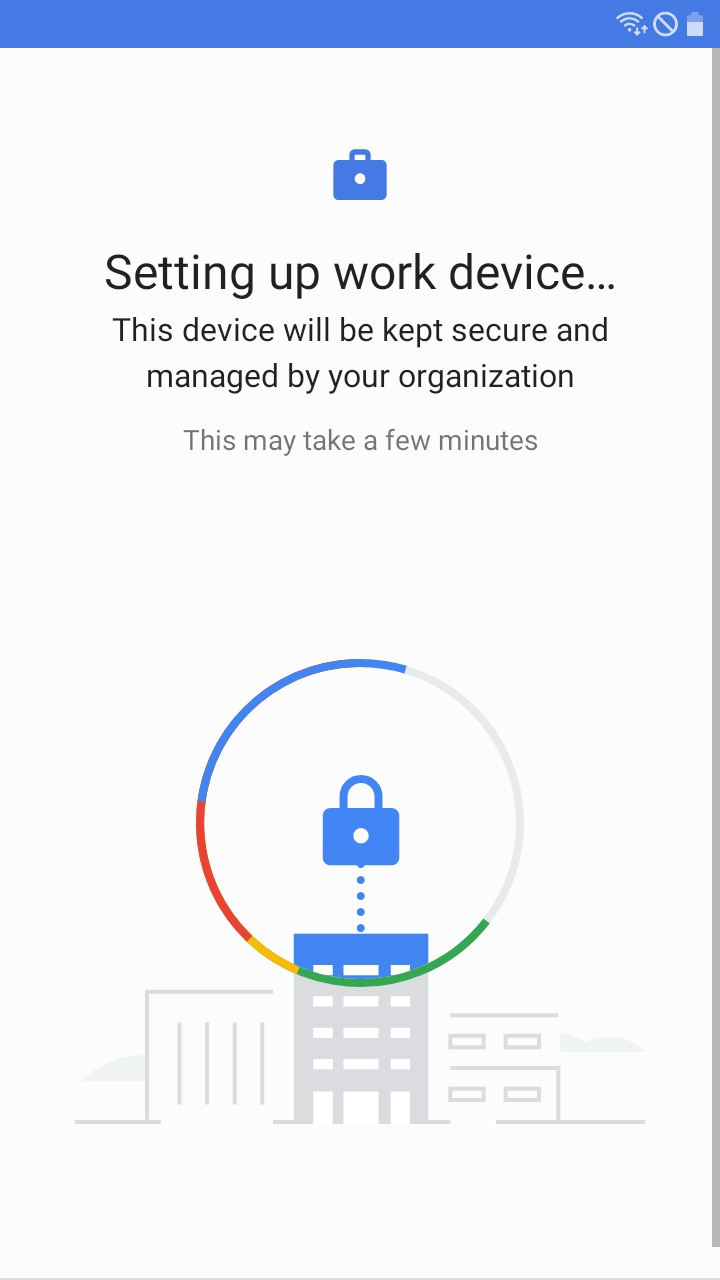
Tap "Accept & continue". A loading screen will appear.
---
#### **Step 8**
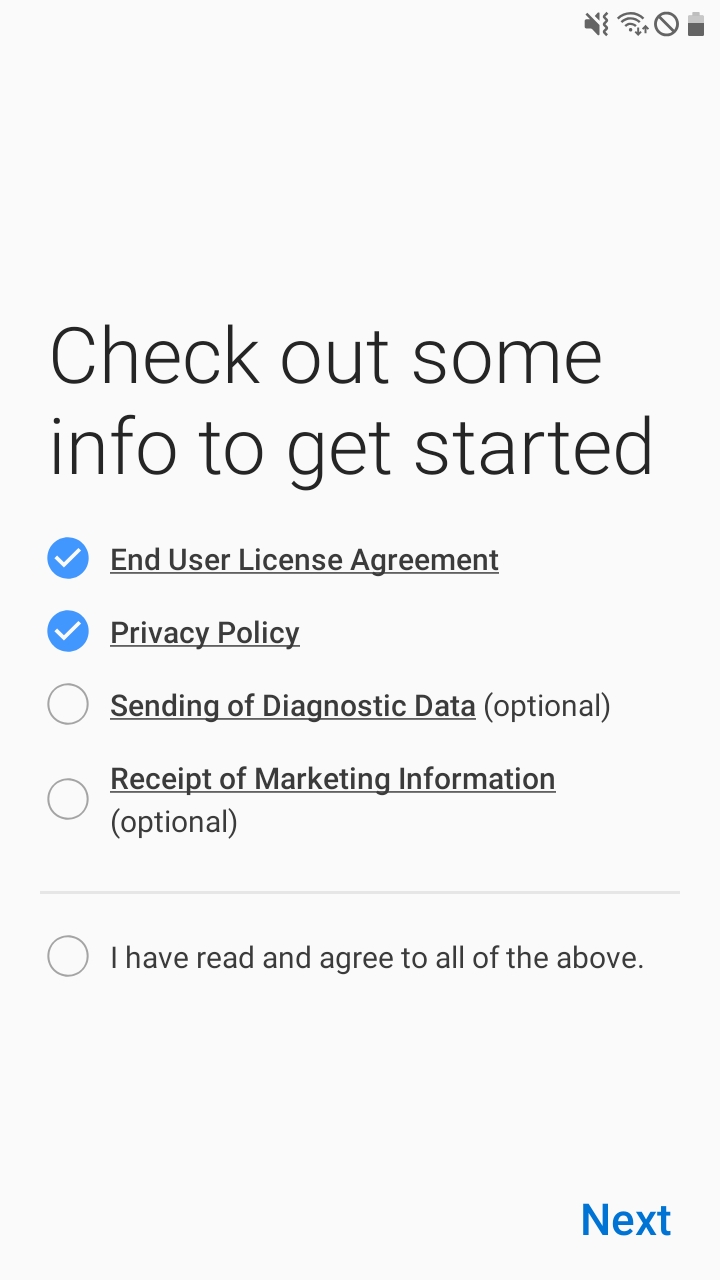
After a few minutes, a legal screen will appear.
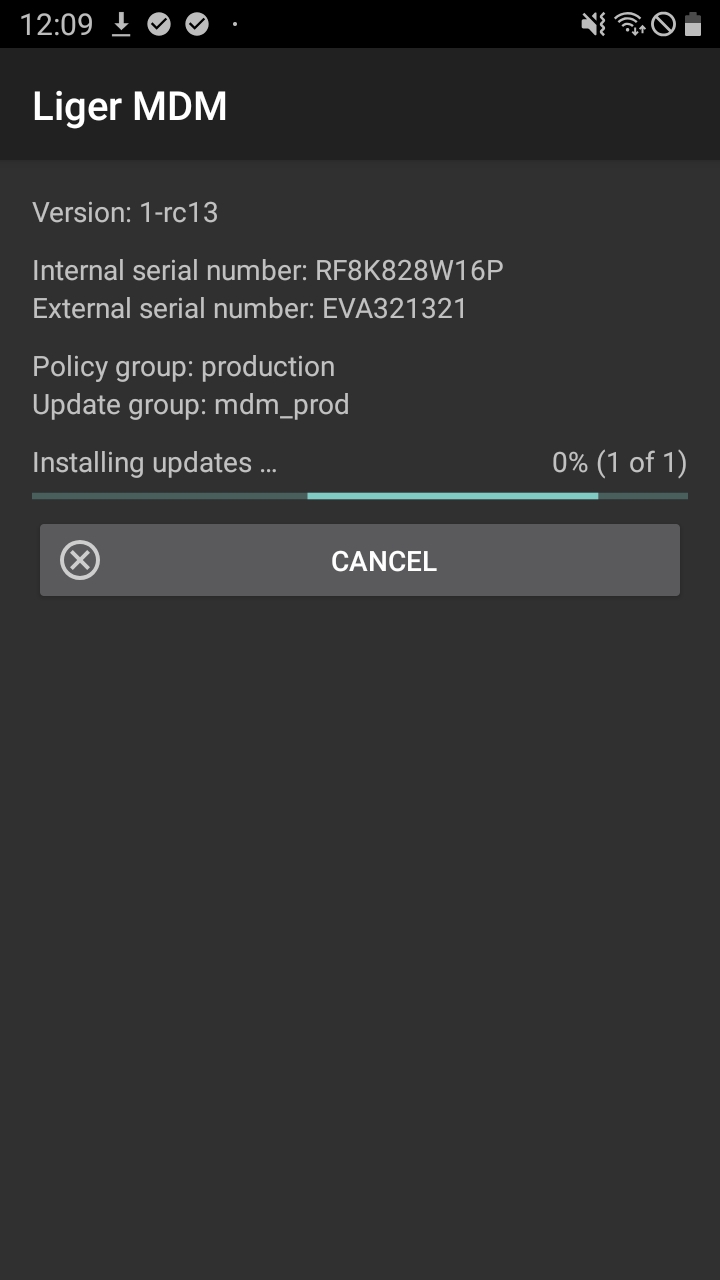
Select the first two options and press next. An installation screen will appear.
**Important: The installation screen may appear before you are able to press next. This is normal.**
---
#### **Step 9**
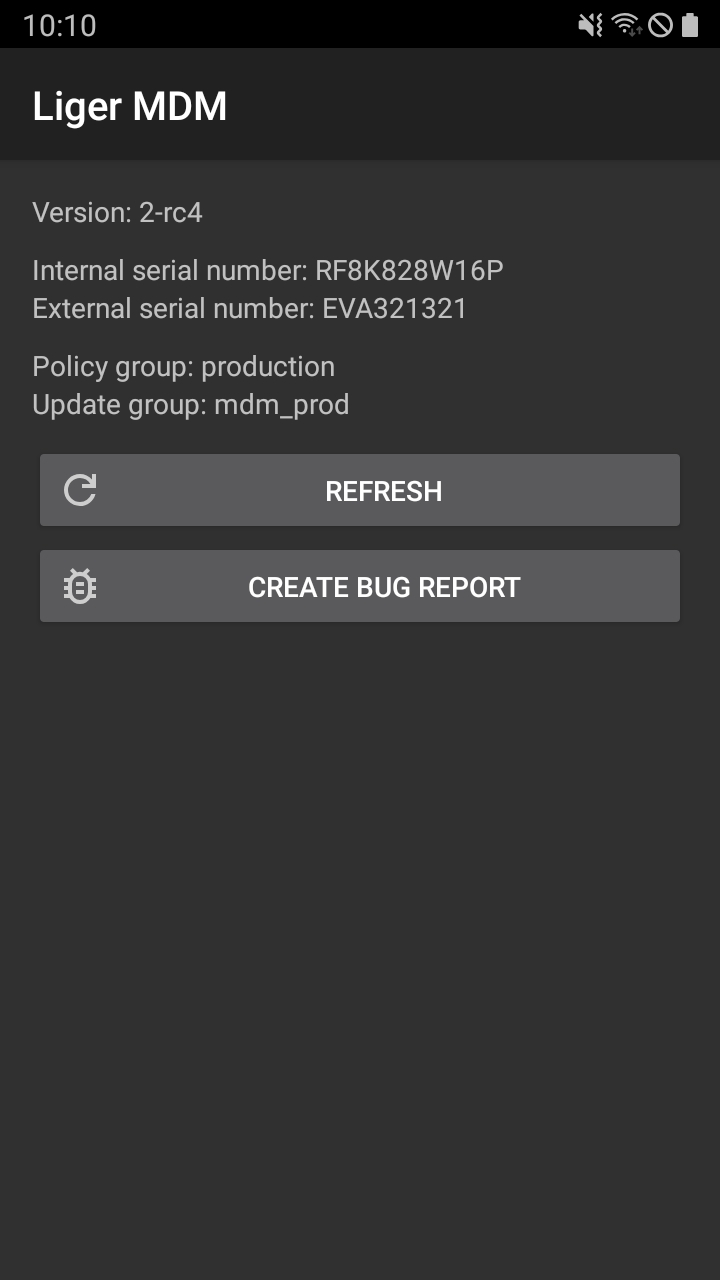
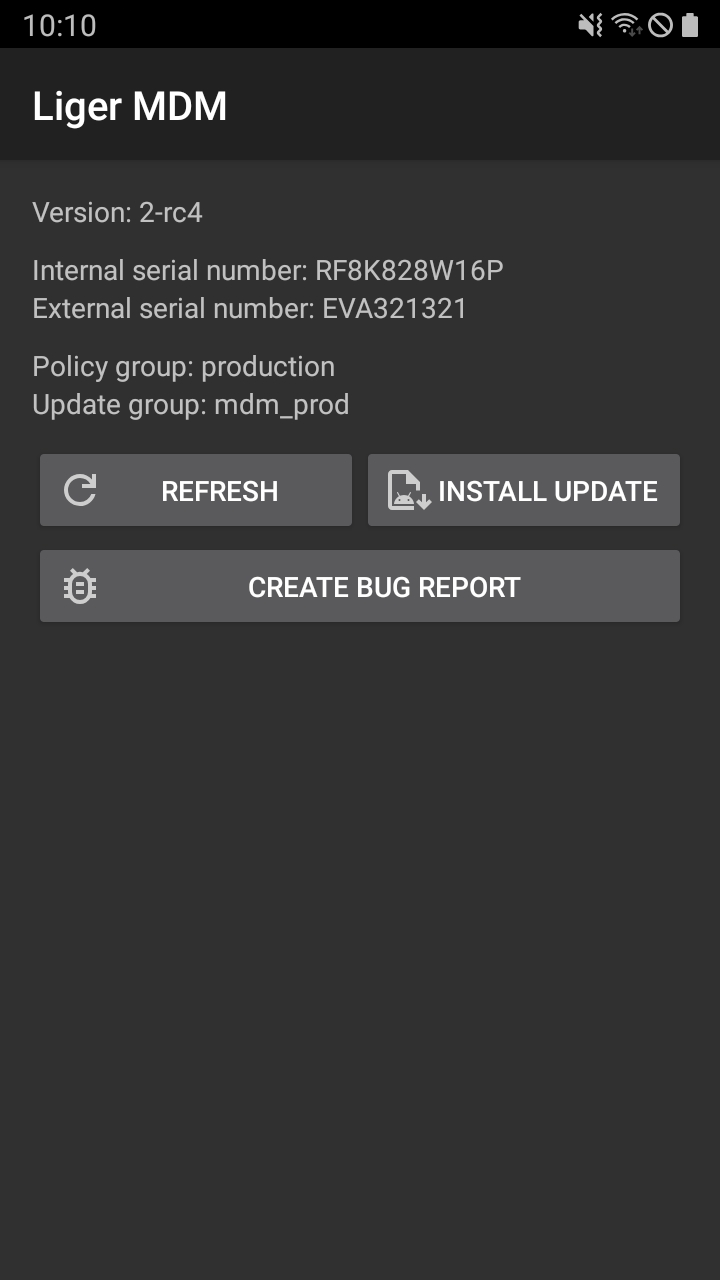
If installation is cancelled or an error occurs, you will need to restart installation.
To restart installation, press refresh and then install update
**Important: If this happens, you do not need to move on to the next step.**
---
#### **Step 10**
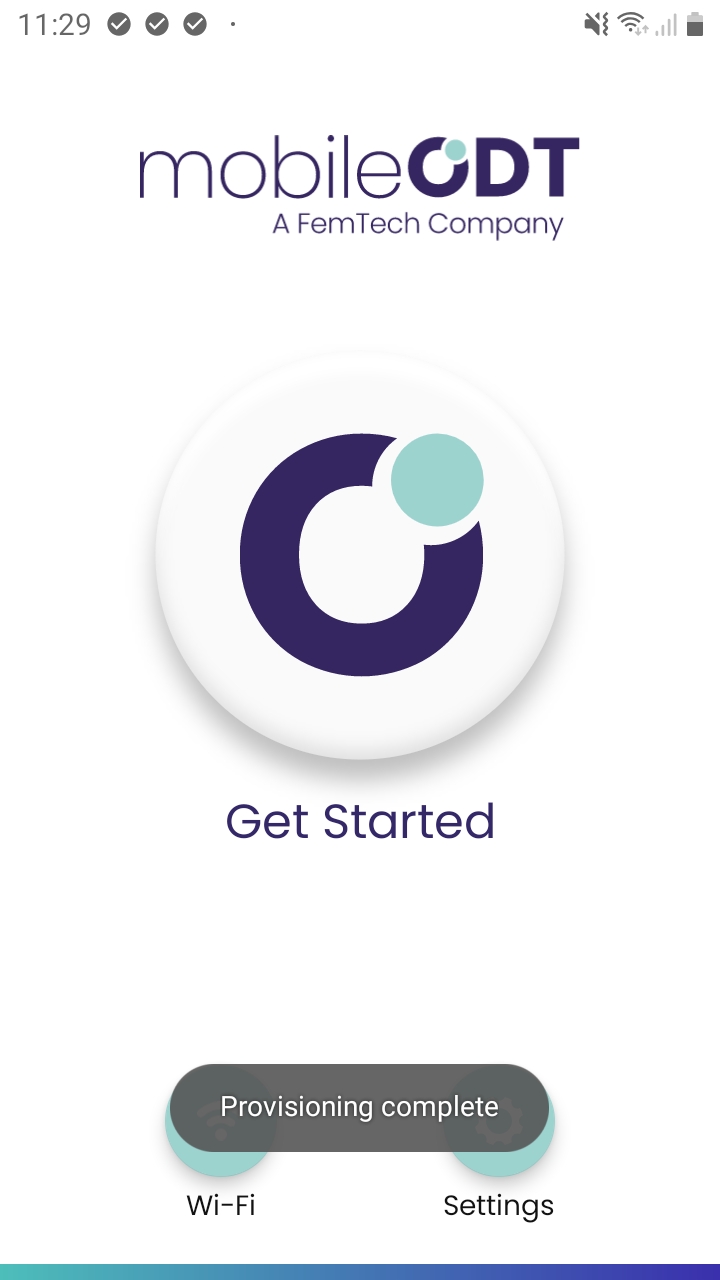
When installation is completed you will see "Provisioning complete".
- [Getting started](https://kb.ligermedical.com/getting-started?hsLang=en)
- [Troubleshooting](https://kb.ligermedical.com/troubleshooting?hsLang=en)
- [EVA Pro](https://kb.ligermedical.com/eva-pro?hsLang=en)
- [EVA SafeView](https://kb.ligermedical.com/eva-safeview?hsLang=en)
- [EVA App (Pro & SafeView)](https://kb.ligermedical.com/eva-app-pro-safeview?hsLang=en)
- [EVA Portal](https://kb.ligermedical.com/eva-portal?hsLang=en)
- [EVA Plus](https://kb.ligermedical.com/eva-plus?hsLang=en)
- [EVA App (Plus)](https://kb.ligermedical.com/eva-app-plus?hsLang=en)
- [Thermocoagulator](https://kb.ligermedical.com/thermocoagulator?hsLang=en)
- [IRIS Thermocoagulator and Digital Colposcope](https://kb.ligermedical.com/iris-thermocoagulator-and-digital-colposcope?hsLang=en)
[.png?width=250&height=66&name=horiz-onwhite-noslogan%20(2).png "horiz-onwhite-noslogan (2)")](https://ligermedical.com/)
123 Waverly Pl., Boston, MA 02135
[mailto:support@ligermedical.com](mailto:support@ligermedical.com)
Copyright © 2026, LigerMedical
```json
{
"@context" : "https://schema.org",
"@type" : "VideoObject",
"contentUrl" : "https://stream.mux.com/JUMt1viHW7X2qYJCE5qyLc3WOPIxRPl9e5ZIf801hs1U/capped-1080p.mp4",
"dateModified" : "2025-05-18T13:21:53.817Z",
"duration" : "PT2M42S",
"height" : 1080,
"name" : "Reset_Factory_EVA_Plus_device_Enroll_Liger_MDM_1080p",
"thumbnailUrl" : "https://45394163.fs1.hubspotusercontent-na1.net/hubfs/45394163/Knowledge%20Base/KB%20Videos/Reset_Factory_EVA_Plus_device_Enroll_Liger_MDM_1080p.mp4/medium.jpg",
"uploadDate" : "2025-05-18T13:02:14.584Z",
"width" : 1920
}
```