.png?width=500&height=131&name=horiz-onwhite-noslogan%20(1).png)
After completing the exam documentation, opt-in users can export the exam to their email. The email will include a download link to the exam record.
Exporting the exam to an email - ‘Finish exam’
After completing your exam documentation and tapping on ‘Finish exam’, an option to export the exam is available. The user can choose between exporting to an email (opt-in users only) or to a folder on the device from which the exams can be exported and backed up manually on a local drive.
-
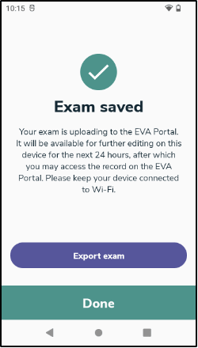
Tap on the button 'Export exam'. (If you don’t want to export the exam, tap on ‘Done’ and the home screen will be displayed)
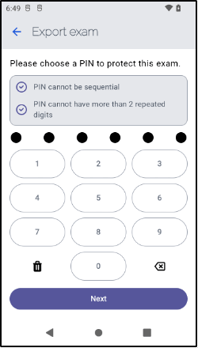
- A 6 digit PIN code is requested to ensure the files of the examination will remain secure. The PIN cannot be sequential and an individual digit cannot be repeated more than 3 times.
- Tap 'Next'.
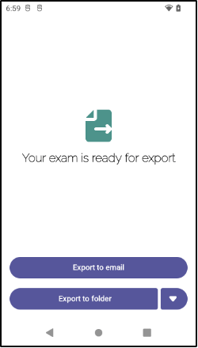
- After setting the pin, the user will need to choose whether to export to the user’s email (opt-in users only) or to export to a folder.
- Upon choosing ”Export to email”, the system will start exporting the examination report as a ZIP file.
The export will be processed in the background, so you may close out of this screen and continue to work in the app. However, please keep the device connected to an internet connection until the export has finished uploading.
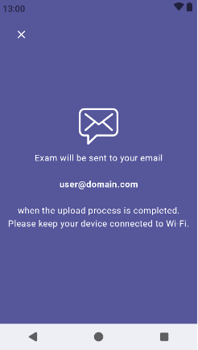
- When the upload process to the portal is completed, the exam will be sent to the user’s email. Click on the link to download the exam record. The link will expire after 24 hours of receiving this email.
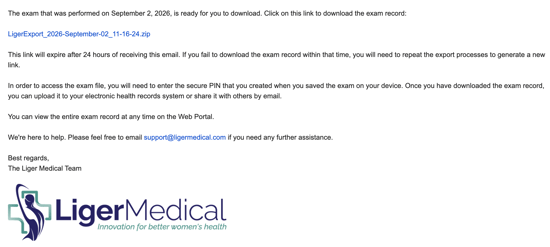
- In order to access the exam ZIP file, you will need to enter the secure PIN that you created when you saved the exam on your device.
This ZIP file is encrypted with AES-256.
Some operating systems have limited support for encrypted ZIP files.
If extraction fails, Liger Medical recommends using 7‑Zip (https://7-zip.org).