.png?width=500&height=131&name=horiz-onwhite-noslogan%20(1).png)
Note: This article applies to EVA Pro and EVA SafeView using the current EVA App.
If you are using EVA Plus, refer to: EVA App (Plus) - Login to the EVA App with an existing user
If you have already created your EVA User account and set a password, you can log in to an EVA device in two ways:
- First time login on a device: Sign in with username and password.
- Returning login on a device: Enter your PIN code on the lock screen to access the app, whether you are online or offline.
First time login on a device - Sign in screen
- Open the EVA Device.
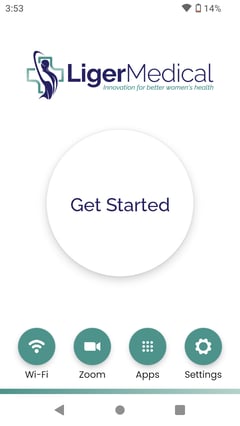
- Tap "Get Started".
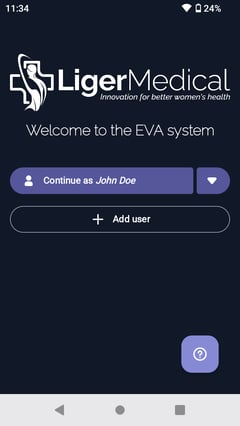
- Tap "Add user".
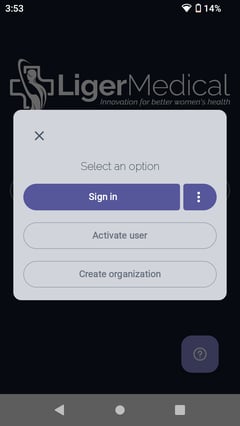
- A pop-up message appears. Tap "Sign in".
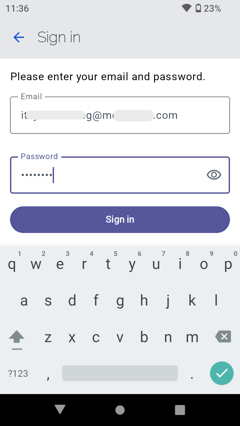
- Enter your email address and password, then tap "Sign In".
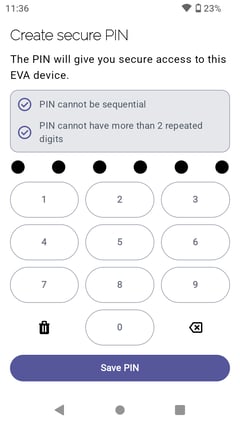
- Create a secure PIN. The PIN will give you secure access to this EVA device. Tap "Save PIN"
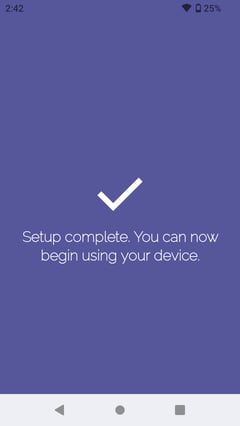
- Setup up complete.
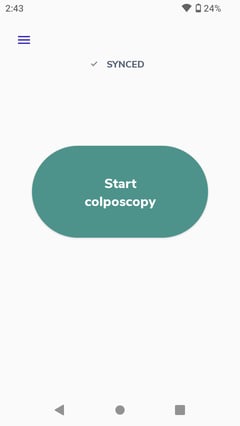
- You are now ready to start an exam.
- Open the EVA Device.
- Tap "Get Started".
- The "Welcome to the EVA System" screen appears.
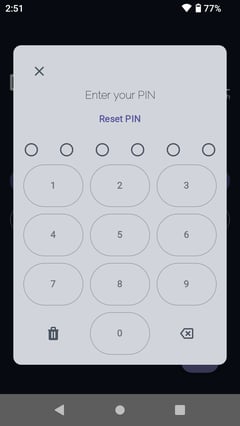
- If the displayed user is yours, tap on the user name. An "Enter your PIN" pop-up message appears. Enter your PIN to access the EVA App.
You will have 5 attempts to enter the PIN correctly. If you do not remember the PIN, tap on ‘Forgot PIN?’ and it will redirect you to the ‘sign-in ‘screen’. On this screen, you
will be able to log in using your email and password.
will be able to log in using your email and password.
-
If the user displayed on the "Welcome to the EVA System" screen is not yours, tap the drop down icon next to the user name.
- The App shows all the users that were added to that particular device.
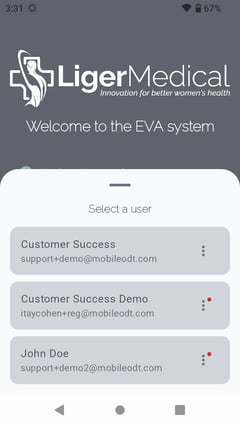
- From the users list, tap on your user name. An "Enter your PIN" pop-up message appears. Enter your PIN to access the EVA App.
Exams Status "Welcome to the EVA System" screen
- If your user account has any unsaved exams, such as drafts, exams still uploading (for opt-in users), or exams not yet exported (for opt-out users), an information icon and message will appear above the user name.
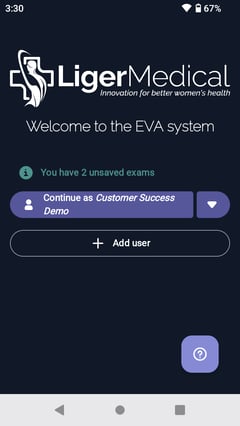
- Tap the icon to view the status of these exams under your account.
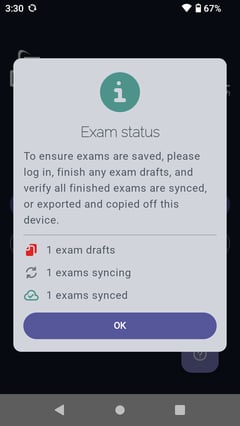
If all exams are synced or exported, or if no exams exist in your account within the EVA App, no information message will appear.