.png?width=500&height=131&name=horiz-onwhite-noslogan%20(1).png)
Using a micro HDMI cable and an external screen monitor, you can extend your
EVA Pro display onto a larger screen and enjoy an enhanced screen visualization.
Required Equipment:
- EVA Pro device
- External screen monitor with an available HDMI port (or HDMI – VGA adaptor) (not supplied by MobileODT)
- Micro HDMI to HDMI cable (not supplied by MobileODT)
Connect the Micro HDMI Cable
Step 1: Connect the Micro HDMI Cable Insert the micro HDMI plug into the Micro HDMI port on your EVA Pro device.
Notice: the port is in the base of the device.
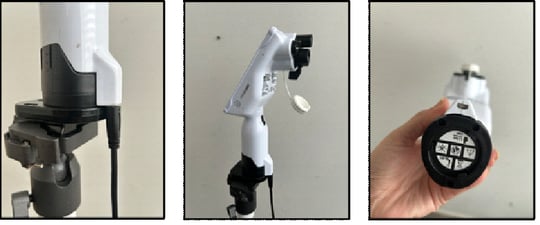
Step 2: Connect the other end of the cable (the standard HDMI plug) to an available HDMI port on the external screen monitor.
Step 3: Switch On the External Screen Monitor Turn on the external screen monitor using its power button or remote control.
Step 4: Switch On Your EVA Pro Turn on your EVA Pro device and start using the EVA app.
Step 5: Adjust the Display Settings (if needed) Depending on your monitor, you may need to adjust display settings. Make any necessary adjustments to match your preferences.
Step 6: Enjoy Your Extended Display Your device should now be mirrored onto the external screen monitor. You can now use the monitor to view content from your EVA Pro.
Step 7: Disconnecting the micro HDMI Cable When you're finished using the external screen monitor, switch off both devices and carefully disconnect the micro HDMI cable.
Screen rotation on external display via HDMI
An option to rotate screen is available when EVA device is connected to the external display via HDMI.
-
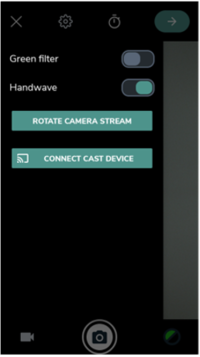
To rotate camera stream, open "Settings" on Camera page. Click on the rotate button labeled “ROTATE CAMERA STREAM”.
-
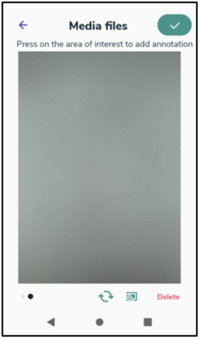
To rotate image in Gallery, tap on rotate button near the bottom next to the Chromecast button.
-
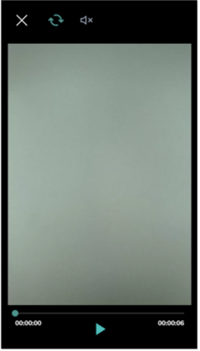
To rotate video in Gallery, click on the video to go to video player. Tap on rotate button in the top.